FEATURE · UTILITY
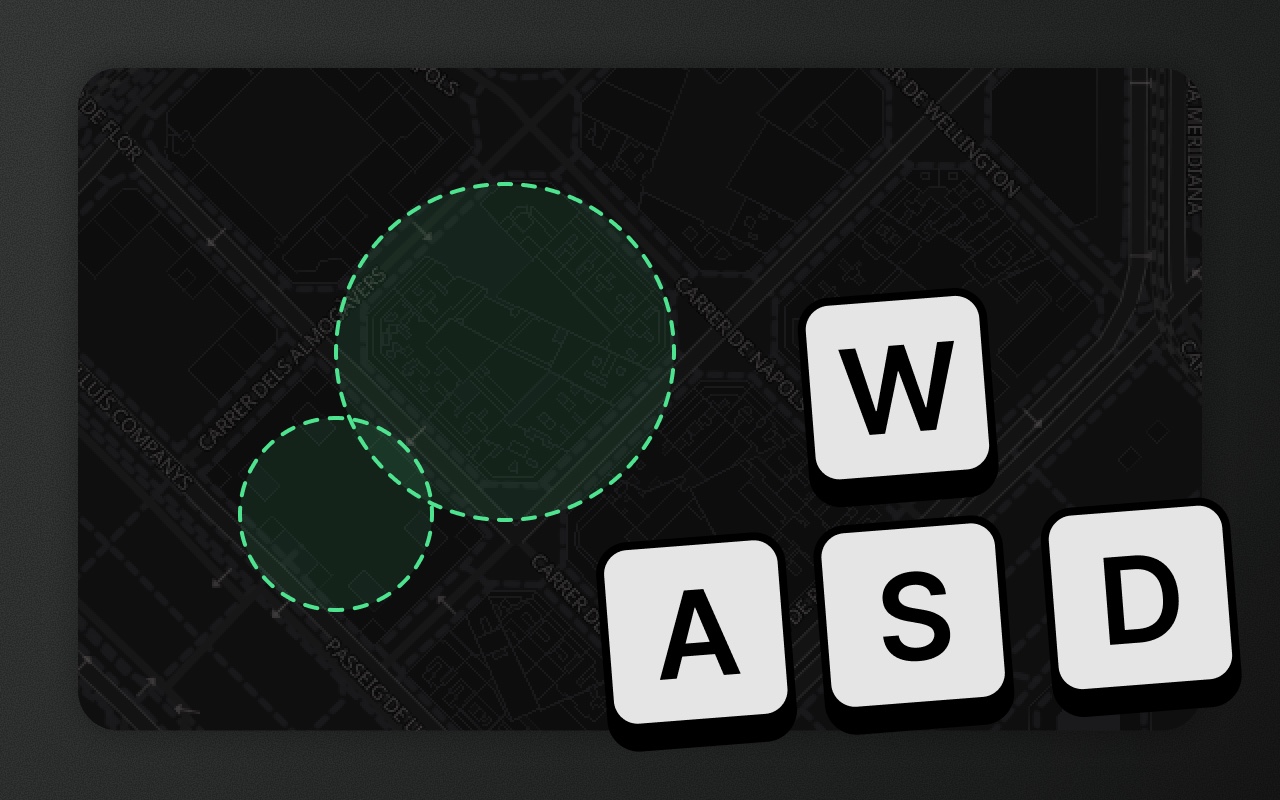
Every tool has a key. Every key is yours to remap.
Press K to open the shortcuts panel. Rebind any tool. Bindings persist across sessions via localStorage.
Try it
- 1Press K to open the shortcuts
- 2Click the G next to Draw area, press Q
- 3Close the panel, press Q to draw
Drawing shortcuts
| Tool | Default |
|---|---|
| Place point | P |
| Draw line | L |
| Draw area | G |
| Draw rectangle | R |
| Draw circle | O |
| Draw freehand | F |
| Draw route | C |
| Picker (import from OSM) | X |
| Measure | M |
Editing shortcuts
| Action | Default |
|---|---|
| Toggle transformation | A |
| Cut hole | H |
| Slice shape | J |
| Break apart Multi* | B |
| Undo | ⌘Z |
| Redo | ⌘⇧Z |
| Select all visible | ⌘A |
| Edit selected layer | ⌘E |
| Group selection | ⌘G |
| Ungroup selection | ⌘⇧G |
| Copy / paste | ⌘C / ⌘V |
| Duplicate in place | ⌘D |
| Delete selected | Del / ⌫ |
| Finish drawing | ↵ |
| Cancel / deselect | Esc |
View shortcuts
| Action | Default |
|---|---|
| Toggle layers panel | / |
| Toggle data table | T |
| Toggle GeoJSON viewer | I |
| Toggle schema editor | S |
| Toggle shortcut panel | K |
| Set zoom level | Z |
| Search places | ⌘F |
| Toggle sticky tool (stay in the tool after a shape, the default, or return to select) | ⌘J |
| Import a GeoJSON file | ⌘O |
| Export a GeoJSON file | ⌘S |
Remapping
Press K. The shortcuts panel lists every customisable binding. Click a row, press the new key, the change commits. Conflicts are flagged — if you try to bind P to the Area tool and P is already on point, Element Editor shows the conflict and doesn't save the binding until you press a free key.
Bindings save to localStorage under the key elm_shortcuts (versioned). They survive page refreshes and stay per-browser. Clear the key to reset to defaults.
Fixed shortcuts
These shortcuts stay fixed: undo, redo, select all, copy, paste, duplicate, edit selected, group, ungroup, delete, search, finish drawing, cancel, sticky tool (⌘J), import (⌘O) and export (⌘S). They follow OS conventions or use modifier combinations — rebinding them would conflict with browser and platform shortcuts.
Show it in code
There's no config option for default bindings: users remap keys in the panel. What config controls is whether shortcuts run at all:
import { ElementEditor } from '@element-editor/react'

export default function App() {
  return (
    <ElementEditor
      config={{
        ui: {
          // enabled: shortcuts work; show: the shortcuts button/panel is visible;
          // mapZoom: opt in to Cmd/Ctrl +/- zooming the map
          keyboardShortcuts: { enabled: true, show: true, mapZoom: false },
        },
      }}
    />
  )
}Pass keyboardShortcuts: false to turn shortcuts off and hide the button.
Things to know before you ship
- Remap persistence is per-browser. Users on two devices see different bindings unless you sync via your own auth layer. For that, read from
localStorage.elm_shortcutson your side. - Bindings use single characters only. The panel accepts one key per binding. Modifier combinations (⌘K, Shift+A) aren't currently supported for customisable shortcuts — intentional, to avoid conflicts with browser and OS shortcuts.
- Shortcuts are suppressed inside input fields. Typing a property value never triggers a drawing tool, even if you type a bound key.
- Shortcuts are scoped per editor. A key acts on an editor only when focus, or your last click, is inside it. Two editors on one page don't fight over keys, and your host page's own inputs and modals keep theirs (including Esc). Your own portaled UI should carry
data-elm-portalso shortcuts keep working while it has focus.
Works with
- Drawing — every drawing tool has a default key.
- Vertex editing — editing uses the fixed shortcuts plus Esc.
- Theming — the shortcuts panel inherits your theme colours.