FEATURE · EDITING
Move, scale, and rotate any set of features.
Click to select. Shift-click to extend. Shift-drag to lasso. Press A to scale and rotate with a live bounding-box transform.
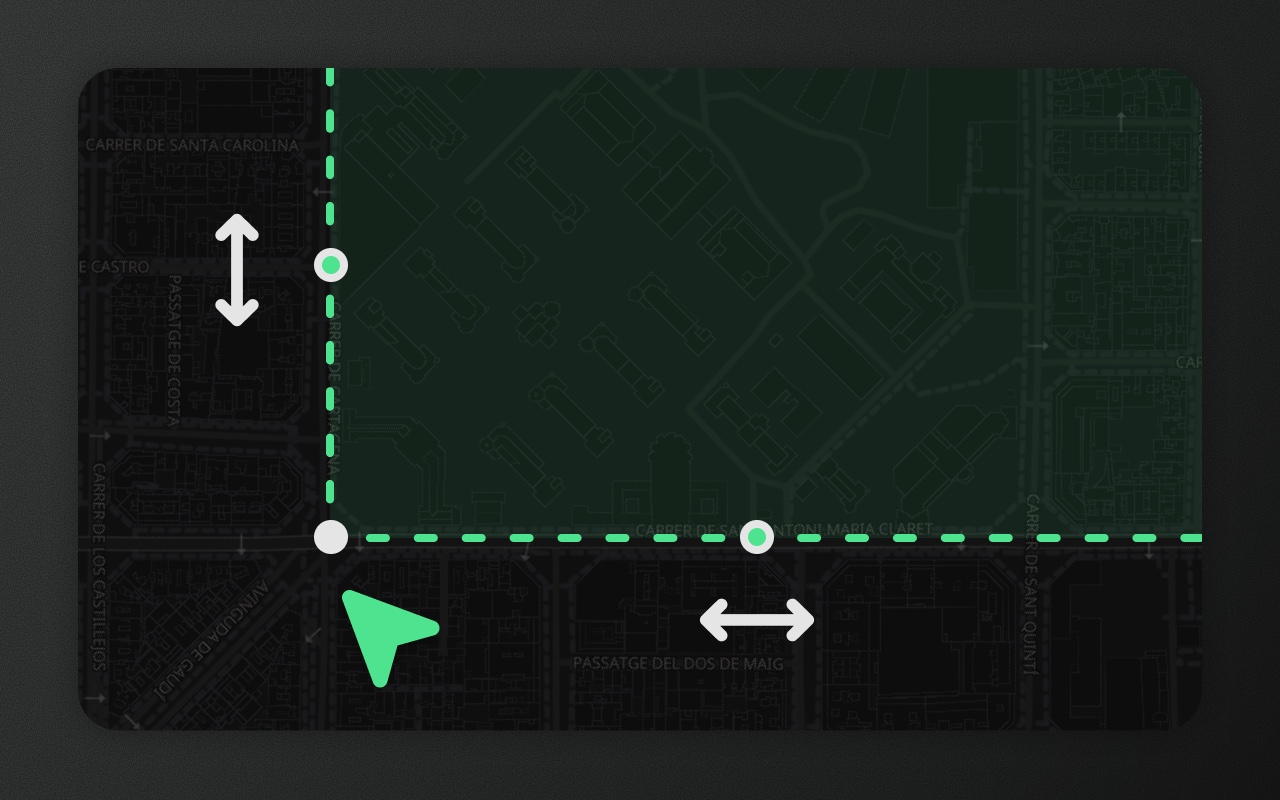
Try it
- 1Click a stall, Shift-click another
- 2Shift-drag across the street to select every stall
- 3Press A and drag the round handle to rotate
Selection is one mental model. Transform is a second mode on top of it.
Element Editor keeps these two concepts distinct. Selection is about which features are active; transform is about moving or resizing them as a group. Most implementations conflate the two and produce weird edge cases — accidentally resizing when trying to select another feature, or losing your selection the moment you click a handle.
You select features first. Then, if you want to move or resize them, you enter transform mode explicitly.
Selecting features
| Gesture | What it does |
|---|---|
| Click on a feature | Replace selection with just that feature |
| Shift + click | Toggle the feature in or out of the selection |
| Shift + drag on empty space | Lasso — select every feature intersecting the rectangle |
| ⌘A | Select every visible feature in the collection |
| Esc | Clear selection |
| Right-click a feature | Open the context menu (rename, group, delete, copy GeoJSON, …) |
Selected features highlight with an accent-coloured outline. The selected-feature panel shows property forms, group membership, and the full list of selected IDs.
Acting on a selection
Once you have a selection, the editing toolbar exposes the geometry operations and these shortcuts apply:
| Shortcut | Action |
|---|---|
| ⌘E | Open the edit panel for the single selected feature, focus the first field |
| ⌘G | Group the selection — features carry through metadata.groups |
| ⌘⇧G | Ungroup the selection |
| ⌘C / ⌘V | Copy / paste — uses the system clipboard, so it works across browser tabs |
| ⌘D | Duplicate in place |
| ⌘-drag a selected feature | Translate (move) without entering transform mode |
| Del / ⌫ | Delete |
Transform — toggle with A
With one or more features selected, A toggles transform mode on and off. A bounding box appears with eight scale handles on the corners and edges, plus a rotation handle above the top edge.
Scale — drag any corner or edge handle. The selection resizes from the opposite corner. Hold Shift while dragging to preserve aspect ratio.
Rotate — drag the rotation handle. The selection rotates around the bounding box centre.
Move — drag anywhere inside the bounding box (but outside a handle). The selection translates.
Each drag commits when you release it. Press A or Esc, or click empty map, to leave transform mode; clicking a feature keeps it on.
Transform is a 2D visual operation — Element projects every vertex to pixel space, applies the scale/rotate/translate, and unprojects. It is not geodesic: a 50% scale on a polygon spanning 1,000 km does not preserve area on the WGS84 spheroid. For accurate distance work, use the measure tool before and after.
Visual mode drags preserve shape
Element's drag implementation uses pixel-space projection (translateGeometryVisually), not raw coordinate offsets. The difference matters at scale — a naïve coordinate offset distorts large polygons because of Mercator's latitude warping. Element projects every vertex, applies the transform, and unprojects — so the shape you see during drag is the shape you get on commit, regardless of extent.
Show it in code
import { ElementEditor } from '@element-editor/react'

export default function App() {
  return (
    <ElementEditor
      onSelectionChange={(ids) => {
        console.log('selected', ids.length, 'features')
      }}
      onFeatureUpdate={(id, feature) => {
        // fires after each transform commit
        console.log('updated', id, feature)
      }}
    />
  )
}onSelectionChange fires on every selection change — single select, shift-click, lasso, clear. onFeatureUpdate fires once per committed feature after a transform.
Things to know before you ship
- Transform mode needs a selection. Pressing A with nothing selected is a no-op. Select first, then transform.
- Rotation pivots around the selection's centroid. For a single feature, that's the feature's centre. For a multi-feature selection, it's the centroid of the combined bounding box.
- Drawn shapes keep their type through a transform. Moving, rotating or scaling a rectangle, circle or route keeps its
_drawType. Only editing individual points turns it into a plain shape. A transformed route no longer follows the roads; Element warns once per session. - Transform commits land in undo. Each scale, rotate, or move is one undo step. ⌘Z rolls it back.
Works with
- Drawing — what you draw is what you select.
- Vertex editing — for fine-grained shape changes instead of transforming the whole feature.
- Boolean operations — combine, subtract, or intersect selected features.